AI background changer
Describe a new scene for your product or portrait, or choose a white or solid-color background


Choose an image and describe a new background
or drop or paste an image
JPG, PNG, or WebP, up to 30 MB
How to change the background of a photo
Choose a photo or open a creation
Use the original photo directly for an AI background, or continue arranging an existing background removal result.
Describe a scene or choose a color
Describe the setting and lighting for a new scene. For a solid color, remove the background first and then choose a color.
Preview and download the result
Preview and download your AI background once it's generated. With a transparent or solid background, download the current composition directly.
Give the same product a different setting
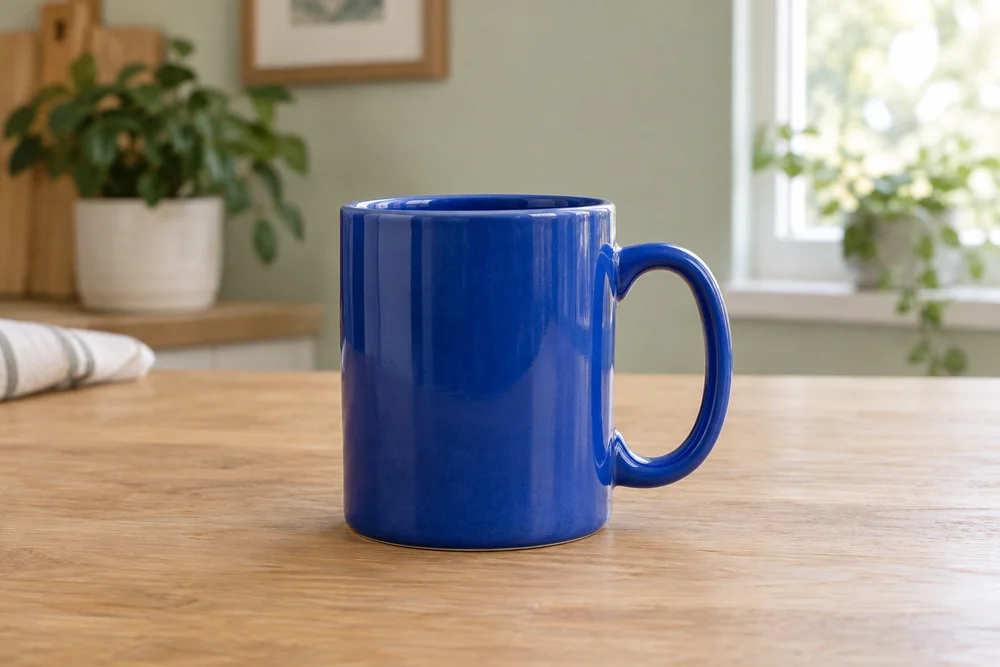
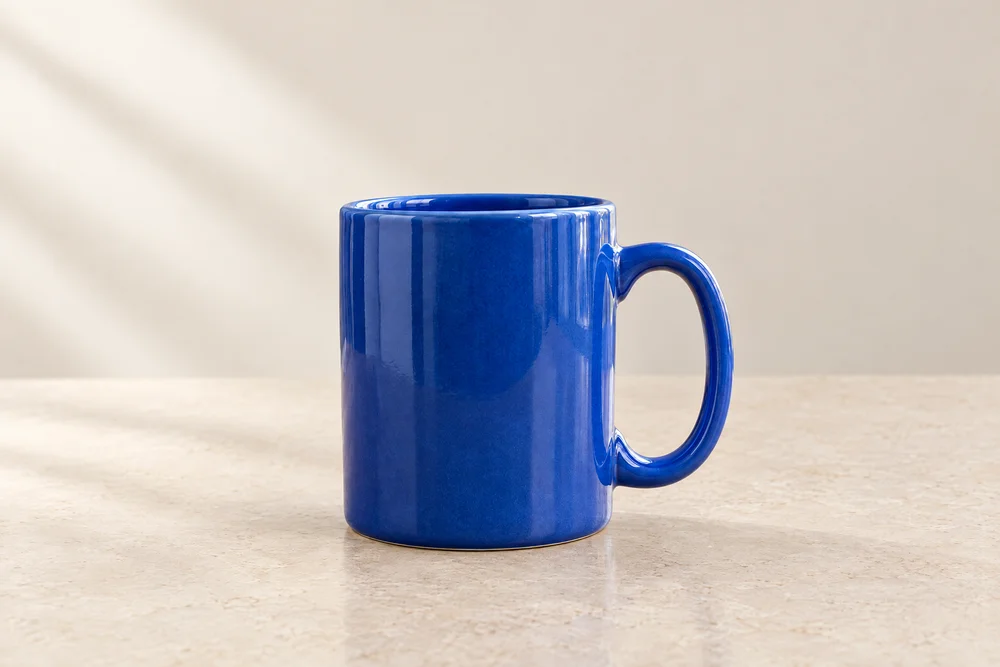
An actual background change result: this blue ceramic mug moves from an indoor wooden table to a light display surface, with changes to the setting, light, and shadows
Try new settings for your products
Describe the surroundings, materials, and light, from a photo studio to a table by a window, to explore different product visuals.
Create different backgrounds for portraits
Describe an indoor, outdoor, or simple studio setting to prepare portrait images for content covers. Place the same portrait in different scenes to match each topic.
Prepare seasonal and campaign visuals
Include a season, color palette, or props in your scene description, then choose a background that fits your campaign.
Choose white when you need a plain background
After removing the background, select white, a preset color, or a custom color. The cutout subject is used as is, so you can quickly change the background color and adjust the layout.
Arrange the canvas and subject for your use
With a cutout, move and scale the subject and leave space around it. When using an original photo directly, describe the composition and choose a target canvas. Plan space for headlines and selling points.