GPT Image 2.5 is here: create images with transparent backgrounds

AI object remover

Upload a photo, say what to remove, and the rest of the image stays exactly as it was
Try saying

How to remove objects from a photo with AI

1

Upload your photo

Pick the photo you want to clean up; supported formats and size limits are shown in the upload area

2

Say what to remove

Describe it in plain words, such as “remove the person in the background”. The more specific you are, the less gets touched

3

Preview and download

Preview the result in My creations and download it, or keep editing it with AI image editor
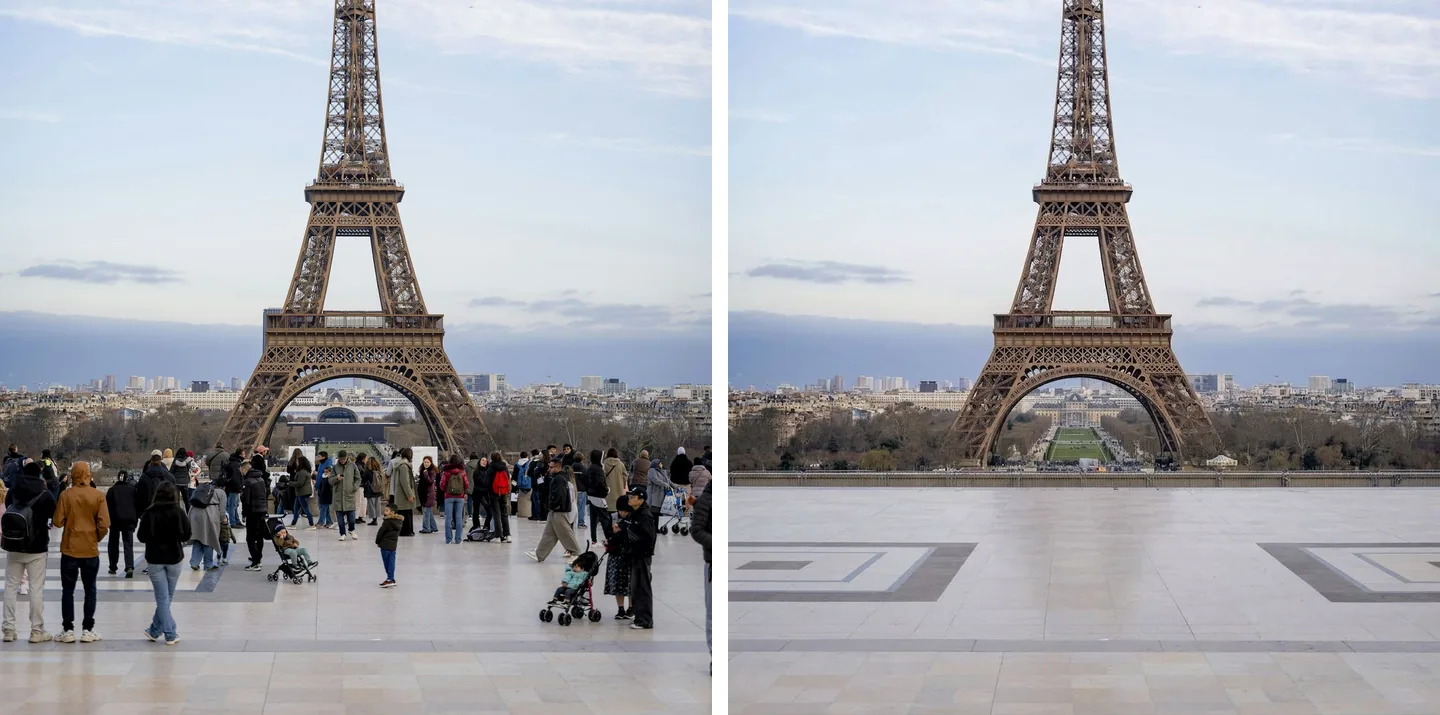
Tourists in front of the Eiffel Tower before and after removal

Clear a crowded landmark in one sentence

When a travel photo is packed with strangers, one sentence takes them all out. AI rebuilds the ground, the building and the sky as they were, right down to the inlaid pattern in the pavement.

Seaside portrait before and after removing sunglasses from the face

Sunglasses, hats and anything else you are wearing

Name the one thing you want gone, like the sunglasses on a face and the raised arm holding them. Nothing else moves: the expression, the clothes and the sea behind stay exactly as they were.
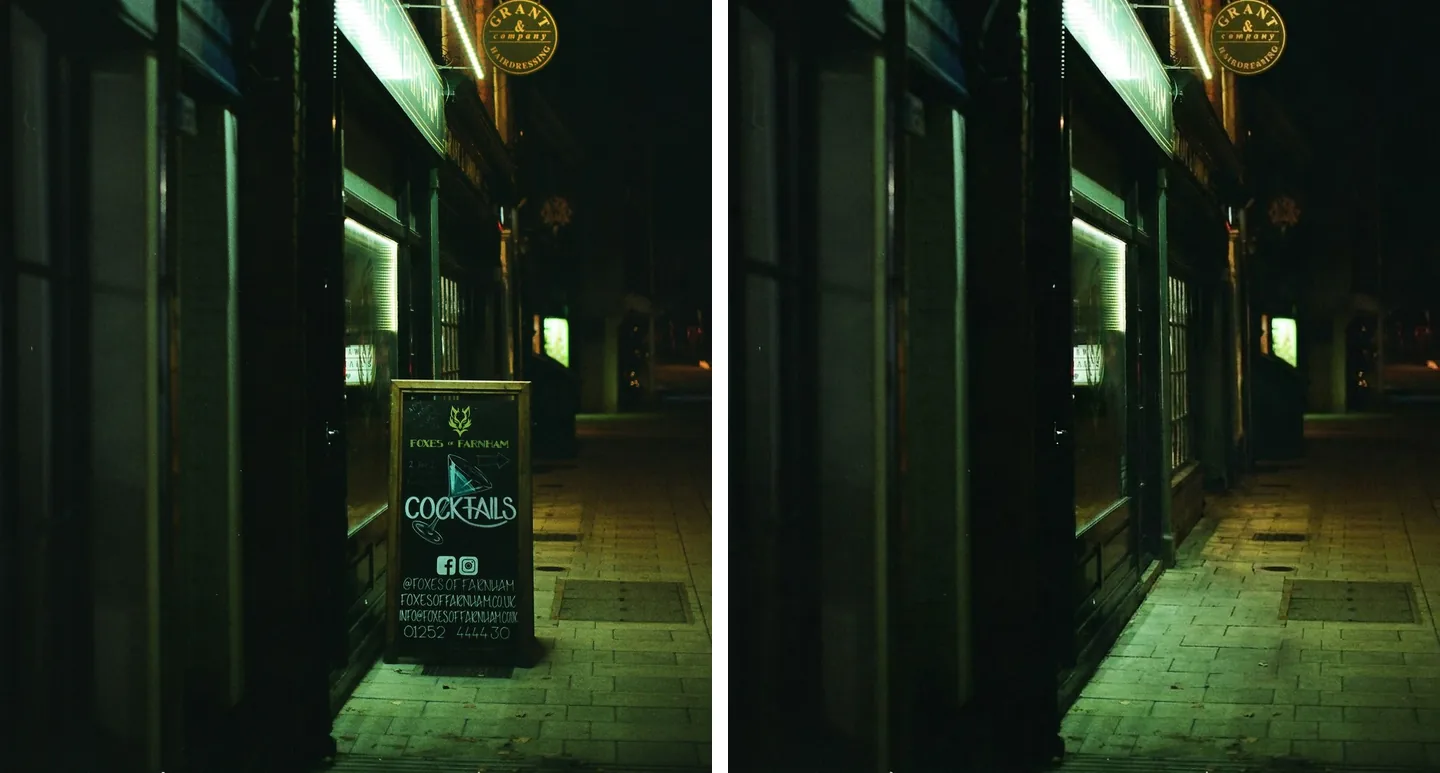
Street storefront before and after removing the A-board sign from the pavement

Take out a whole sign, text and all

Shop signs, display boards and A-boards come out as one piece, and the wall and pavement behind them are filled in to match. The result is saved in My creations, ready to download.

What would you like to do next?

Frequently asked questions

No. Just say what you want gone, such as “remove the person in the background” or “remove the ring from the hand”. Manual mask brushing is not available; everything is located from your description.

Name only the thing you want removed. The model is instructed to rebuild just the area behind it and leave every other pixel alone. Asking to recolor or restyle in the same sentence widens the edit, so do those separately.

AI rebuilds the vacated area from the surrounding texture, color, lighting and perspective rather than smearing it flat. The larger the object and the more complex what sits behind it, the more likely you are to see artifacts.

You can name more than one in a single sentence, such as “remove the person on the left and the cup on the table”. Doing it one at a time is usually steadier: feed the result back in as the new source image and remove the next one.

This tool is built for clearing extra people and objects out of a scene. When the main subject goes, there is nothing behind it to reference, so the rebuilt area tends to look empty compared with removing secondary elements.

Object removal uses credits, calculated from the output tier planned for your source image. Credits are returned if the task fails.